
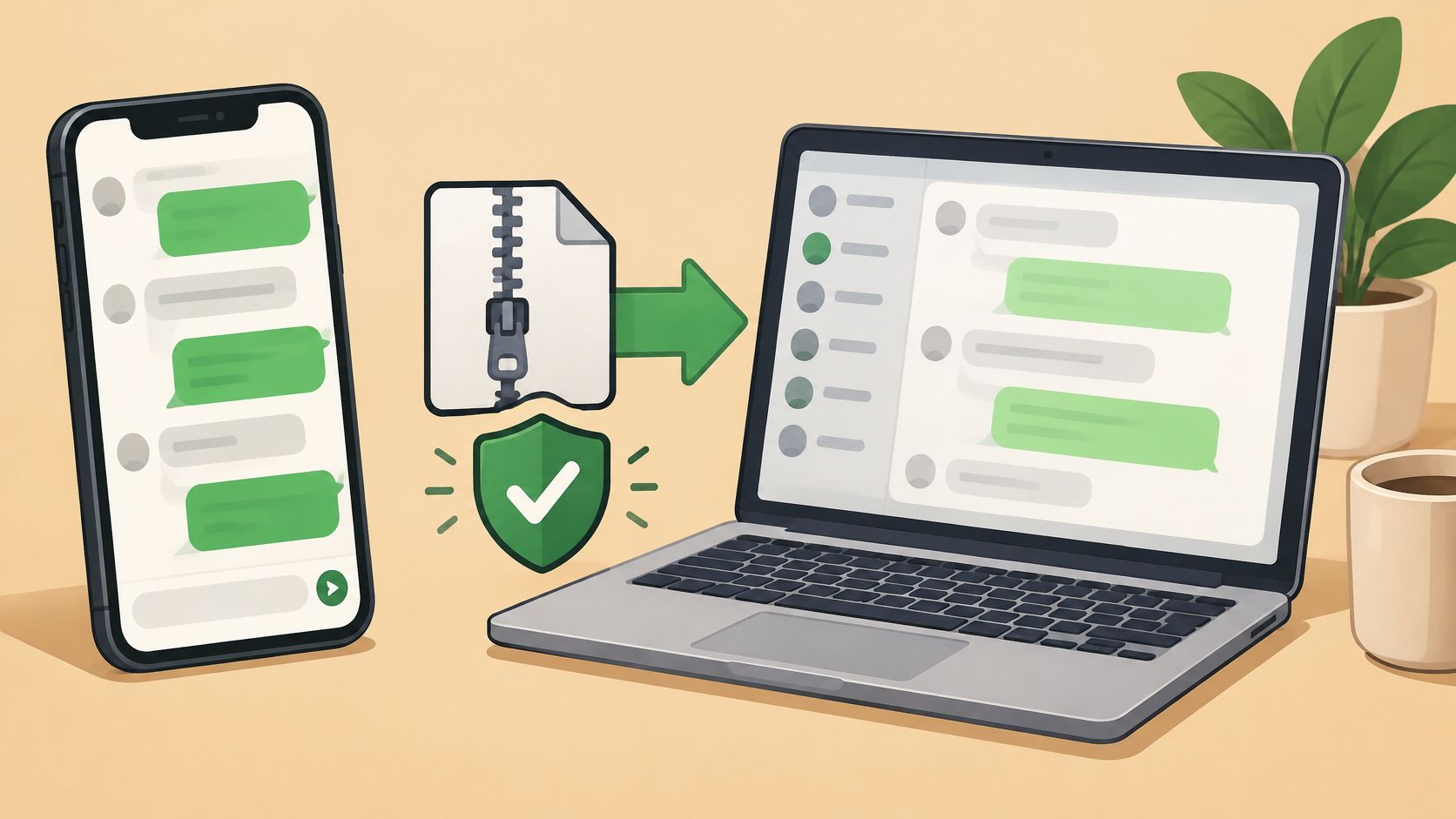
A WhatsApp export can give you a copy of a conversation, but it cannot restore that conversation to WhatsApp. The distinction matters if you want to preserve messages or use them to build an AI persona: what you upload is a partial reading copy, not a perfect replica of the original chat.
Before importing anything, check what the export contains, decide which messages you have permission to use, and review the result before relying on it. Those checks help catch missing media, scrambled dates, and details an AI might get wrong.
Table of Contents
- Which Option Fits
- How to Export a WhatsApp Chat Step by Step
- What Exports Leave Out and Why
- Check Consent and Choose a First Chat
- Import Your Export and Review It Before Use
- Fix Garbled Dates and Failed Imports
- Frequently Asked Questions
Which Option Fits
A WhatsApp export is a reading copy, not a restore. The right choice depends on whether you want to read or reuse a chat, move it to another phone, or recover your own account.
| Option | What it produces | Restores into WhatsApp? | Best for |
|---|---|---|---|
| Export chat | Timestamped text transcript in a ZIP, with optional media | No, it's a text file and can't be re-imported | Reading, keeping, or importing into another tool |
| Chat Transfer | Full chat and media history moved between supported devices | Yes, between supported devices; as of 2026, between two Android phones, according to the WhatsApp Help Center | Switching to a new phone |
| Backup restoration | Your own account data restored from a backup | Yes, but only on the phone, not on linked devices | Recovering your own account |
WhatsApp keeps portable exports separate from restorable backups. The company says it can't restore chat history for you from its servers, and backup restoration must happen on a phone, not WhatsApp Web, Mac, or Windows. A third-party importer therefore generally needs a file you provide or an authorized connector, not a server-side WhatsApp archive.
Choose Export chat if you want to read, keep, or hand a conversation to another tool. Use Chat Transfer when moving to a supported new phone. Use backup restoration to recover your own account data.
The trust question is what can be reconstructed outside WhatsApp, and which metadata or media may be missing or altered. Treat any rebuilt conversation as an interpretation of the original, not a perfect copy.
How to Export a WhatsApp Chat Step by Step
The export is made from the conversation you choose. Take a moment to check the options before sharing it, especially if the chat contains private messages from other people.
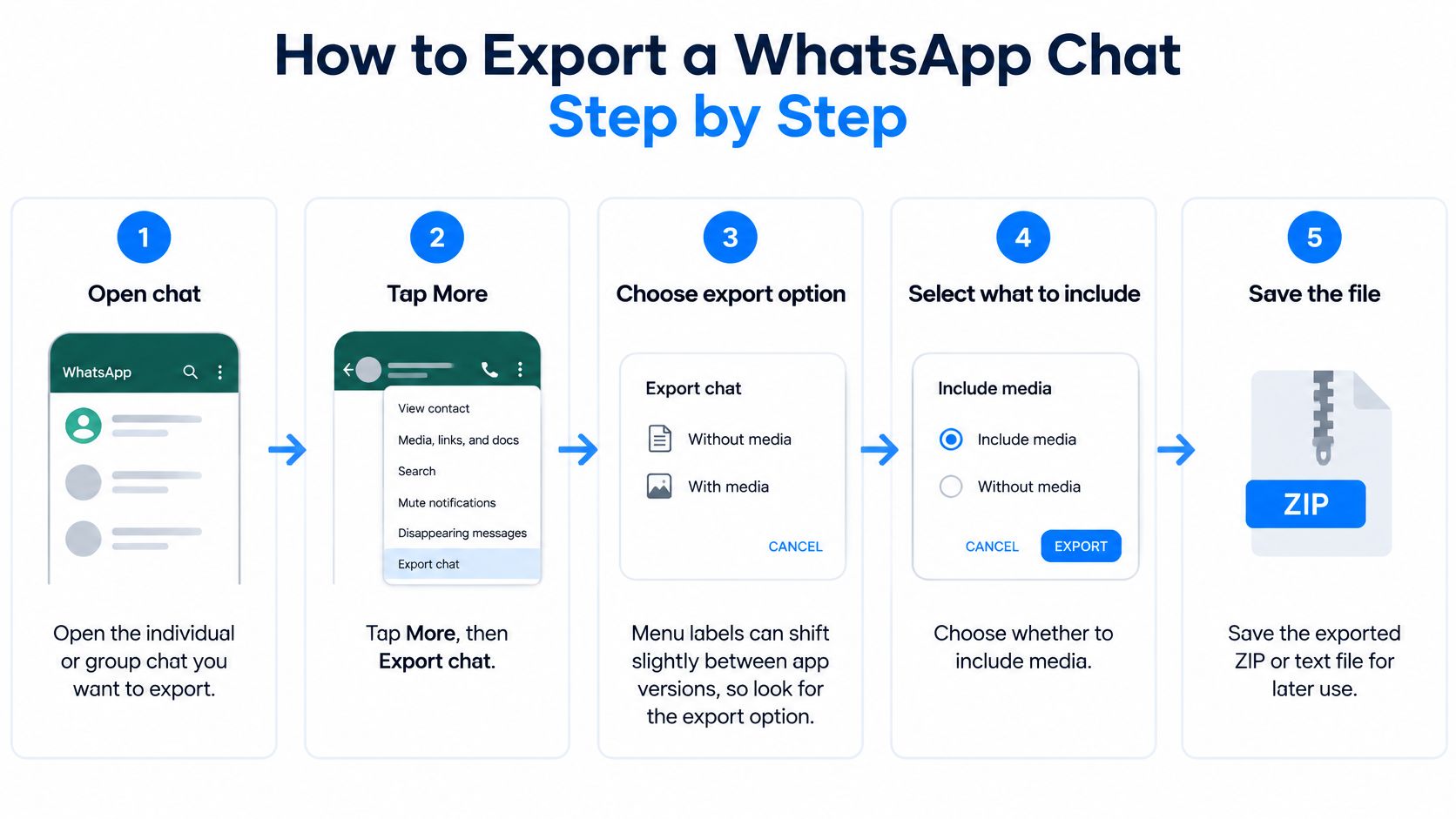
Open the chat. Choose the individual or group conversation you want to export. Starting with a specific chat keeps unrelated messages out of the file.
Choose Export chat. Tap More, then Export chat. Labels can shift slightly between app versions, so look for the export option in the conversation menu.
Select the media option. Choose Without media for a smaller text-only file, or Include media if you want the export to attach files. In some flows, WhatsApp may attach only the most recent media, so older photos might not be included.
Set the date range if offered. Some export interfaces let you choose all messages or a custom period. A bounded date range can limit the material you collect to the relationship or topic you want to work with.
Save the export. Share or save the result to Files or Drive, or email it to yourself, then download it to the device you'll use for importing. Keep track of which copy you're working with.
Unzip and document it. Extract the ZIP once, leave the original ZIP untouched, and note the export date, participants, and media option. A common mistake is choosing Without media and then assuming the missing photos are an import failure.
Quick check: Confirm the download is a ZIP containing a timestamped
.txtfile. Open the transcript and check that your messages and dates appear. Then confirm the files match the media option you selected, and record that option in your note.
A transcript you edit later shouldn't replace the original. Keeping both lets you compare the imported text with the source if something looks out of place.
What Exports Leave Out and Why
An export is a partial record, not a complete copy of a conversation. Some content may not appear in the file at all, and a missing attachment doesn't prove it was never sent.
| What may be missing | Why it may happen | What to do |
|---|---|---|
| View-once or disappearing messages | They may not appear in the exported file | Don't expect them in the import; note the gap |
| Media beyond the most recent items | Only the latest media may be attached in some flows | Treat unlisted media as unknown, not never sent |
| Media in WhatsApp Web exports | Web exports may handle media differently from phone exports | Export from the phone when photos matter |
| Quoted replies, reactions, and group details | They may not map cleanly into a plain text import | Keep the original ZIP as the reference |
Plain text can also lose context. A quoted reply may no longer clearly point to the message it answered, and group details or reactions may not carry across cleanly. If who said what matters, compare the imported conversation with the source instead of treating every line as self-explanatory.
Use three habits to limit confusion:
- Label it as partial. Don't present the imported conversation as a complete record.
- Keep the original ZIP. It's the reference if a date, message, or attachment looks wrong.
- Review uncertain details. An AI can misunderstand a source, combine memories incorrectly, or invent a plausible detail. ExChat keeps important context editable so you can correct errors before relying on it.
Gaps are normal. Work with the material that did come through, and mark what remains unknown rather than filling it in with guesses.
Check Consent and Choose a First Chat
Only use conversations you have the right to use. A WhatsApp export can include messages from several people, not just the account holder, so review the contents before uploading them.
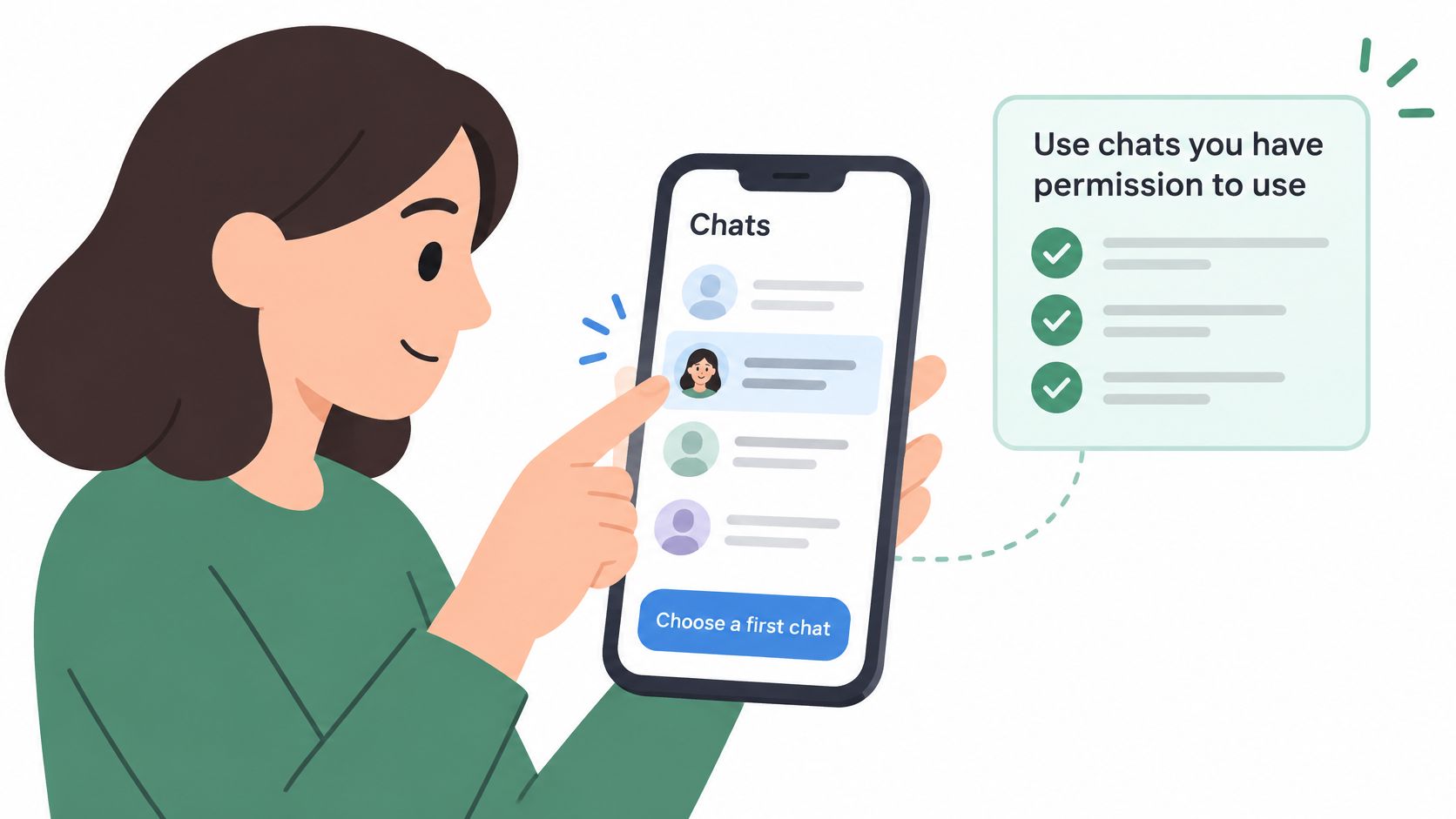
Before you upload, ask yourself:
- Are you a participant in this chat?
- If it's a group, do the other people know their messages may be used?
- Would the person be comfortable with a persona shaped from their words?
If you can't answer those questions responsibly, don't use that conversation. ExChat isn't for deception, stalking, or evading someone's boundaries. Never present an AI persona to another person as the actual person or use it to impersonate a living person without explicit permission. Read ExChat's consent and likeness guidelines before choosing what to upload.
Start with a manageable chat
A short one-on-one conversation is usually easier to inspect and correct than a long group archive. If your export interface offers a custom date range, choose a bounded period and include only messages you're authorized to use.
A simple first-chat checklist:
- Choose a one-on-one chat before a group conversation.
- Pick a limited period you can export and review.
- Confirm you have the right to use the words of everyone whose messages you plan to include.
This makes it easier to spot errors and decide whether you're comfortable with the result before adding more material. You control your uploaded data and can delete it.
An ExChat persona is generated from permitted source material. It isn't conscious, isn't the person, and can be wrong. It can't recover someone or know what they would say now. For memorial use, approach it gently: AI isn't a substitute for grief support or therapy.
Import Your Export and Review It Before Use
Importing an export into ExChat doesn't rebuild your WhatsApp account. You're providing source material for a persona, so keep the original ZIP unchanged and review the imported content before any persona is created.
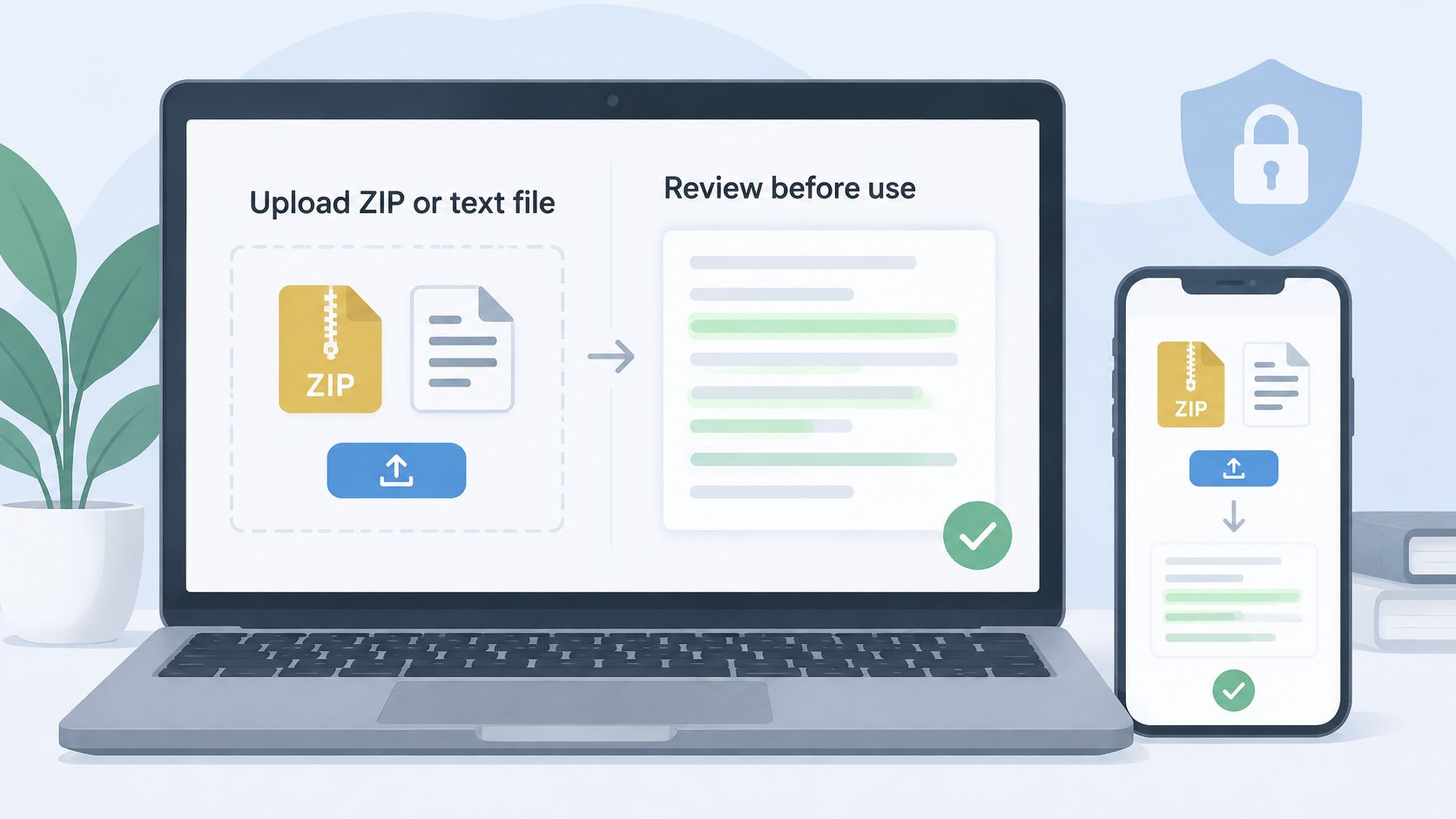
You can upload the ZIP you saved or the timestamped text file inside it. Then check the material in this order:
- Check the dates. Scan the first and last lines. Make sure the dates appear in the order you expect, rather than assuming the importer read the format correctly.
- Check participants and messages. Look for unexpected names, conversations, or lines that seem out of place.
- Inspect each attachment. Mark a file as present and readable, referenced but missing, or present but unreadable. A missing file is unknown, not proof it was never sent.
- Remove unwanted material. Exclude any message, participant, or file you don't want used. You control your uploaded data and can delete it.
- Test the replies. Ask a few questions and compare the answers with what you remember. Correct inaccurate details before going further.
ExChat lets you review what it learns before the persona is created. In the Review step, you can preview replies, inspect source memories, correct inaccuracies, and remove unwanted information before chatting. Approve the persona only when it reflects the conversation you know well enough to use.
For a closer look at the process, visit how ExChat works. The important checkpoint is your review: decide what goes into the persona before you start a conversation with it.
Fix Garbled Dates and Failed Imports
Dates out of order or shifted usually mean the transcript's day-first and month-first formats weren't interpreted as expected. Check the date pattern in the first few lines, then review any lines the importer flags rather than guessing at ambiguous dates.
| Symptom | Likely cause | Fix |
|---|---|---|
| Dates out of order or shifted | Day-first and month-first formats not matched | Check the date pattern in the first lines and review flagged lines |
| Garbled accents or emoji | Transcript not saved as UTF-8 | Save a UTF-8 copy in a plain text editor and keep the original ZIP |
| Lines merged or missing | Multiline messages split across rows | Review the affected lines instead of discarding them |
| Import fails on a long chat | File too large for one pass | Export a smaller custom date range and import in parts |
Garbled accents or emoji often mean the text file wasn't saved as UTF-8. Open the .txt in a plain text editor, save a UTF-8 copy, and keep the ZIP unchanged so the original remains available.
If a multiline message appears merged or broken across rows, inspect the affected lines instead of deleting them. A long chat that fails to import may be too large for one pass. Re-export a smaller date range and import it in parts, then test the same settings with a short chat before trying a larger archive.
If the problem persists, stop and keep the file. Return to the transcript and attachment review rather than treating uncertain rows as reliable material.
Frequently Asked Questions
Can I import a WhatsApp backup directly?
No. A WhatsApp export is a text file, not a restorable backup, and WhatsApp backup restoration runs on the phone itself. A third-party import starts from the exported ZIP or transcript, not from a WhatsApp backup restored on a computer.
Will the persona contact my friends or speak for them?
No. ExChat creates clearly labeled AI personas that generate replies in the style of the source conversations. A persona can't contact people or speak for them as the person.
Can I delete my data later?
Yes. You control your uploaded data and can delete it at any time.
Can I use Telegram or Instagram conversations instead?
Yes. ExChat also supports Telegram conversations and Instagram messages. For memorial use, keep expectations gentle: an AI persona isn't a substitute for grief support or therapy.
ExChat creates private, clearly labeled AI personas from messages, memories, and relationship context you're permitted to use, with control over your uploaded data. When your WhatsApp export is ready, visit ExChat to start creating a persona and review the material before chatting.
Create a private, clearly labeled AI persona from conversations you are allowed to use.
Create a persona ↗